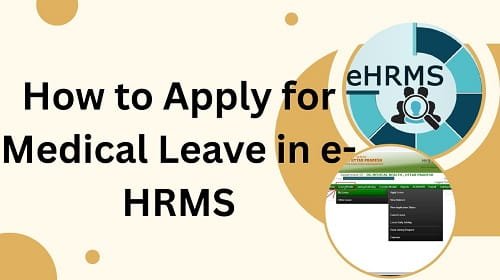
Applying for Medical Leave in the e-HRMS 2.0 portal is slightly different from applying for Casual Leave. In government HRMS systems, medical leave is usually processed as Commuted Leave, which is sanctioned against your Half Pay Leave (HPL) balance.
This means the system converts 2 days of HPL into 1 day of full-pay Medical Leave, provided you submit valid medical documents.
If you are a Central or State Government employee using e-HRMS and need to apply for medical leave, this guide explains the entire process clearly—from preparation to post-joining formalities.
What Is Medical Leave in e-HRMS?
In e-HRMS, medical leave is generally recorded as:
- Commuted Leave (on medical grounds)
- Sanctioned against Half Pay Leave (HPL)
- Requires medical certification
Unlike Casual Leave, medical leave:
- Can be applied after recovery (back-dated)
- Requires document verification
- Is not auto-approved in most cases
Prerequisites Before Applying Medical Leave
Before logging into the portal, make sure the following are ready:
1. Medical Certificate
You must have a valid Medical Certificate issued by:
- A CGHS-empanelled doctor, or
- A Registered Medical Practitioner (RMP)
The certificate should clearly mention:
- Period of illness
- Advice for rest or leave
2. File Format and Size
- Format: PDF or JPEG
- File size: Usually under 1 MB
Large or unclear files often lead to rejection.
3. Check Your HPL Balance
Since medical leave is adjusted against Half Pay Leave, ensure you have enough HPL balance.
If HPL is insufficient, the system may not allow submission.
Step-by-Step Process to Apply Medical Leave in e-HRMS
Step 1: Log in to e-HRMS Portal
Visit ehrms.gov.in and log in using e-Parichay credentials (NIC / government email).
Step 2: Navigate to Leave Module
From the dashboard, go to:
Employee Services → Leave → Apply Leave
This opens the leave application form.
Step 3: Select Leave Nature
In the Leave Type / Leave Nature dropdown, select:
Commuted Leave
This is the technical option used for Medical Leave in government HRMS.
Step 4: Enter Leave Dates
Select:
- From Date – first day of illness
- To Date – last day of advised rest
Important note: Unlike Casual Leave, Saturdays, Sundays, and holidays falling within medical leave are counted as leave days.
Step 5: Upload Medical Certificate
Look for options like:
- Upload Attachment
- Medical Certificate
Click Choose File and upload your scanned certificate.
Make sure the document is:
- Clear
- Legible
- Properly named
Step 6: Enter Reason for Leave
In the remarks or reason box, enter:
- “Medical grounds”
- “Illness as per medical certificate”
Avoid unnecessary details.
Step 7: Submit the Application
Click Submit or Forward.
The leave request will be sent to:
- Reporting Officer →
- Nodal Officer / Admin / DDO (as per hierarchy)
Approval usually requires manual verification.
After Returning to Duty: Joining Report Is Mandatory
Medical leave is not considered fully closed until you submit a Joining Report.
How to Submit Joining Report
1. Log in to e-HRMS after resuming duty
2. Go to: Leave → Submit Joining Report
3. Upload a Fitness Certificate from:
- Same doctor, or
- Same hospital (recommended)
This confirms that you are medically fit to resume duties.
Important Rules You Must Remember
| Feature | Rule |
| Leave conversion | 2 days HPL = 1 day Medical Leave |
| Back-dated application | Allowed |
| Certificate | Mandatory |
| Approval | Manual (not auto-approved) |
| Joining report | Compulsory |
Special Case: Long Medical Leave
If your medical leave:
- Exceeds 15 days, or
- You took treatment outside headquarters
You may also be required to:
- Submit Station Leave permission
- Provide additional clarification if asked by admin
Always follow department-specific instructions.
Common Problems and Solutions
Application Rejected
Usually due to:
- Missing medical certificate
- Unclear scan
- Insufficient HPL balance
Fix the issue and reapply.
Upload Error
- Compress the file
- Use PDF instead of image
- Rename the file simply (e.g., medical_cert.pdf)
Leave Not Closing
- This happens if Joining Report is not submitted.
- Always complete this final step.
Final Thoughts
Medical Leave in e-HRMS is a rule-driven and document-based process. While the system allows flexibility like back-dated application, it also demands accuracy, proper certificates, and completion of post-leave formalities.
If you follow the steps carefully—check HPL balance, upload correct documents, and submit the joining report—your medical leave will be processed smoothly without audit or service record issues.
When in doubt, remember one rule: medical leave is valid only when it is properly documented and formally closed in e-HRMS.
![List of Traditional Dress of Jharkhand [For Men and Women]](https://hrmsunfold.com/wp-content/uploads/2026/06/List-of-Traditional-Dress-of-Jharkhand-For-Men-and-Women.jpg)