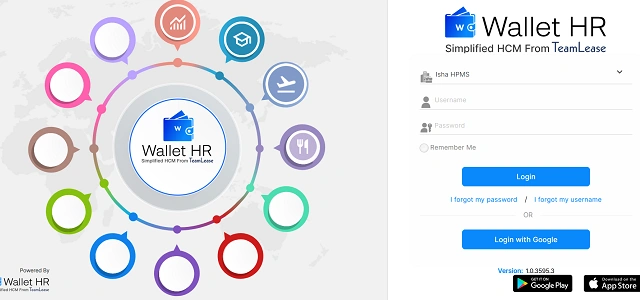
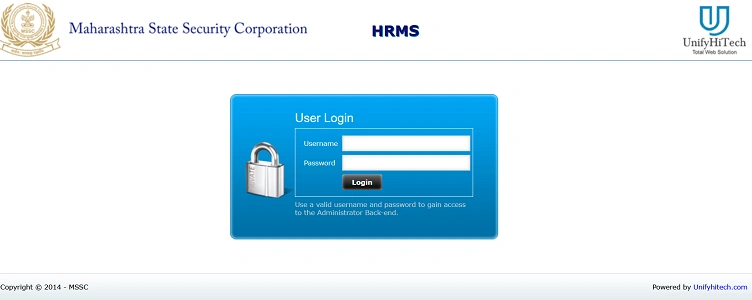
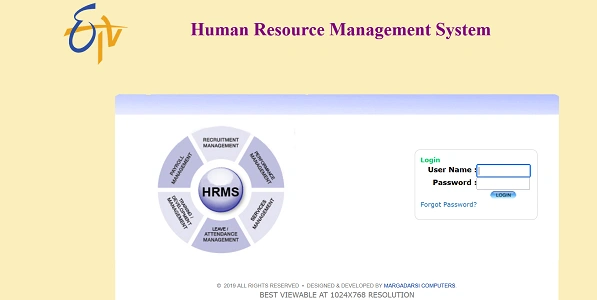
The e-HRMS (Electronic Human Resource Management System) portal is the official digital platform used by government departments in India to manage employee records, service books, leave, salary details, and other HR services. If you are a government employee and trying to log in for the first time—or facing login issues—this guide will walk you through the process clearly.
The exact e-HRMS website depends on whether you are a Central Government employee, a State Government employee, or part of a specific department. While the portals look slightly different, the login process is mostly the same.
Who Uses the e-HRMS Portal?
The e-HRMS system is mainly used by:
- Central Government employees
- State Government employees
- PSU and department-level staff
- DDOs, Establishment Clerks, and Admin officers
It is officially managed under departments of the Government of India and respective State Governments.
1. How to Login to e-HRMS for Central Government Employees (e-HRMS 2.0)
If you work under a Ministry or Department of the Central Government, you are most likely using e-HRMS 2.0.
Official Portal
Visit: ehrms.gov.in
Step-by-Step Login Process
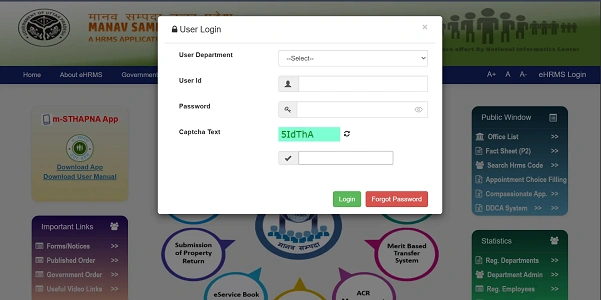
Step 1: Open the website and click on “Login” (usually at the top right).
Step 2: Enter your Username, which is usually:
- NIC email ID, or
- Employee Code provided by your department
Step 3: Enter your Password.
If this is your first login, the default password is often your Date of Birth (DDMMYYYY) unless changed earlier.
Step 4: Enter the Captcha exactly as shown (case-sensitive).
Step 5: Click Login.
Many departments now require OTP verification, which is sent to your registered mobile number for extra security.
2. How to Login to e-HRMS for State Government Employees
Each Indian state has its own e-HRMS portal, usually hosted on a state data center or NIC infrastructure. The portal format is often:
ehrms.[statename].gov.in
Common State e-HRMS Portals
- Uttar Pradesh (Manav Sampada): ehrms.upsdc.gov.in
- Himachal Pradesh: ehrms.nic.in
- Punjab (iHRMS): State-specific iHRMS portal
- Madhya Pradesh, Odisha, Rajasthan, Bihar: Separate state HRMS portals
For example, Uttar Pradesh employees use Manav Sampada, which is the official HRMS platform for the state.
3. General Step-by-Step e-HRMS Login Process (All Portals)
Regardless of the state or department, the login flow usually follows these steps:
Step 1: Open the Official e-HRMS Website
Make sure you are using the correct state or department link. Using the wrong portal is a common mistake.
Step 2: Select Department / District (If Required)
Some portals ask you to select:
- Department
- Office
- District
Choose carefully. Incorrect selection can result in “User Not Found” errors.
Step 3: Select User Category
Choose whether you are logging in as:
- Employee, or
- Administrator / DDO
Employees should always select Employee.
Step 4: Enter Login Credentials
- User ID: Employee Code / GPF Number / PRAN / Registered ID
- Password: Existing password or default DOB format
- Captcha: Enter exactly as shown
Click Login.
4. What to Do If You Cannot Log In
Login issues are common, especially for new users. Here’s how to fix them.
“User Not Found” Error
- Check if you selected the correct department or district
- New joiners may need to wait until the DDO uploads data
- Contact your Establishment Section
“Invalid Password” Error
- Ensure Caps Lock is off
- Try the Forgot Password option
- OTP will be sent to your registered mobile number
Account Locked
Most e-HRMS portals lock the account after 3 failed attempts.
- Wait 24 hours, or
- Contact your Establishment Clerk / DDO / IT section to unlock it
5. First-Time Login Tips
- Use default password only once
- Change your password immediately after login
- Update your mobile number and email
- Verify personal details in your profile
Important Security Tips
- Never share your password or OTP
- Do not log in from public cyber cafés
- Always log out after use
- Check the website URL carefully to avoid fake sites
Your e-HRMS account contains sensitive data like service book entries, PAN, Aadhaar, bank details, and salary records.
Final Thoughts
Logging in to the e-HRMS portal is straightforward once you know which portal applies to you. Whether you are a Central Government or State Government employee, the steps remain largely the same—select the correct portal, enter valid credentials, and complete OTP or captcha verification.
If login problems persist, remember this simple rule: your Establishment Section or DDO is the final authority for HRMS access issues. Once logged in, keep your details updated to ensure smooth access to all HR services in the future.