Approving a leave request in an HRMS (Human Resource Management System) is not an employee task. It is a managerial or administrative responsibility, usually handled by a Reporting Officer (RO), Reviewing Officer, or DDO (Drawing and Disbursing Officer).
Although the screen layout may look different across platforms—government systems like e-HRMS 2.0 or Manav Sampada, and private systems like Keka or Darwinbox—the approval workflow is largely the same everywhere. Once you understand the logic, approving leave becomes a quick and controlled process.
This guide explains how to approve leave requests in HRMS, including government and private portals, special rules, and common problems.
Who Can Approve Leave in HRMS?
Leave approval rights depend on role mapping in the system. Usually, the following roles are involved:
- Reporting Officer (RO): First-level approver
- Reviewing Officer / Sanctioning Authority: Final approver for long or special leave
- DDO / Admin: Has overriding or correction powers
If you log in as a normal employee, you will not see approval options.
1. Approving Leave in Government HRMS Portals
(e-HRMS 2.0 / iHRMS / Manav Sampada)
Government portals follow a structured hierarchy and strict role-based access.
Step 1: Log in with Approver Credentials
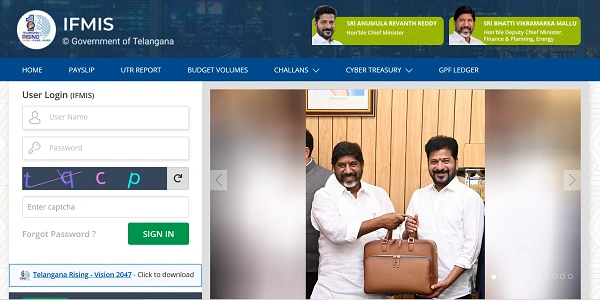
Visit the official portal (for example, ehrms.gov.in) and log in using your Reporting Officer / Admin credentials, not employee credentials.
Step 2: Switch Role (If Required)
Some users have dual roles (Employee + Officer).
- Look for Role Switcher or User Role option
- Select Reporting Officer / Approver
If you stay in “Employee” role, approval options will not appear.
Step 3: Open Pendencies / Inbox
On the dashboard, look for sections like:
- Pendencies
- Inbox
- Leave Approval
- Task List
This section shows all pending leave requests awaiting your action.
Step 4: Review the Leave Application
Click on the employee’s leave request. You should carefully verify:
- Leave type (CL, EL, Medical, etc.)
- Leave dates and number of days
- Employee’s available leave balance
- Reason for leave
This step is important to prevent overdrawing or policy violations.
Step 5: Take Action
Choose one of the following options:
Approve: Final approval if you have sanctioning authority
Forward:
Send to higher authority if:
- Leave exceeds your approval limit
- Rules require higher-level sanction
Reject: Reject the leave (remarks are usually mandatory)
Step 6: Submit the Decision
Click Submit / Update to finalize your action.
Once submitted:
- Employee receives notification
- Leave balance updates automatically
- Attendance and payroll systems sync the data
2. Approving Leave in Private HRMS Platforms
(Keka, Darwinbox, greytHR, etc.)
Private HRMS platforms are more automated and often mobile-friendly.
Platforms like Keka or Darwinbox usually notify managers instantly.
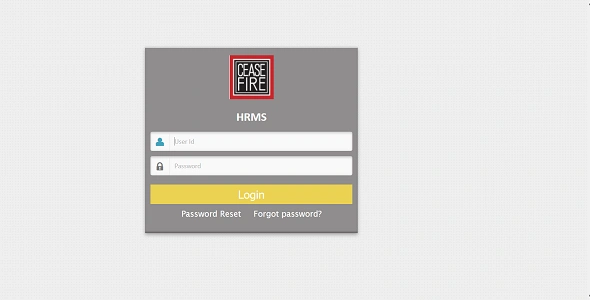
Step 1: Log in to HRMS or Mobile App
Use your manager credentials via web portal or mobile app.
Step 2: Open Approvals Section
Navigate to:
- Approvals
- Team
- Time & Attendance
- Leave Requests
A badge or counter usually shows how many requests are pending.
Step 3: Review Requests
Click on a request to see:
- Leave type and duration
- Team calendar conflicts
- Leave balance
- Reason provided
Some systems automatically flag overlaps or policy issues.
Step 4: Approve, Reject, or Bulk Approve
You can:
- Approve individual requests
- Reject with remarks
- Use Bulk Approval for multiple requests at once
Once approved, the system updates records instantly.
3. “Deemed Approval” Rule in Government HRMS
To avoid delays, many government HRMS portals follow auto-forward or deemed approval rules.
Common rules include:
- If RO takes no action within 3 working days, the request is auto-forwarded
- Short CL (1–3 days) may be deemed approved if no action is taken within the defined time
This ensures employees are not affected due to inaction.
4. Common Problems and Solutions for Approvers
Leave Request Not Visible
- Employee may have saved as draft, not submitted
- Check correct role (RO vs Employee)
- Verify department or office selection
“Approve” Button Missing
- You may only have forwarding rights
- Forward to the sanctioned authority or DDO
Incorrect Leave Balance
- Do not approve if balance looks wrong
- Ask HR / Establishment Section to correct leave ledger first
Overlapping Leave
- HRMS may warn about team conflicts
- Use discretion or consult HR before approval
Important Note for Approvers
Once you approve a leave:
- Leave balance is automatically deducted
- Attendance records are updated
- Payroll calculations use this data
Incorrect approvals can lead to salary errors and audit objections, especially in government systems.
Best Practices for Leave Approvers
- Check leave balance before approving
- Read the reason, especially for long leave
- Act within time to avoid auto-forward
- Use remarks clearly while rejecting
- Coordinate with HR for rule clarifications
Final Thoughts
Approving leave in HRMS is a responsibility that directly affects employee trust, attendance records, and payroll accuracy. While the system automates calculations, human judgment is still crucial, especially for overlaps, shortages, or special cases.
Whether you are using a government portal or a private HRMS, the approval logic remains the same: review, verify, decide, and submit. When done correctly and on time, HRMS makes leave management smooth, transparent, and audit-safe for everyone involved.