Checking your leave balance in HRMS is one of the most basic yet important things every employee should know. Your leave balance tells you how many days you can take off, how many you’ve already used, and whether any leave is pending approval. It helps you plan time off properly and avoid last-minute surprises.
Whether you are using a government portal like e-HRMS or Manav Sampada, or a private HRMS used by companies, the process is almost the same. This guide explains exactly how to check leave balance in HRMS, how to read the data correctly, and what to do if something looks wrong.
What Is Leave Balance in HRMS?
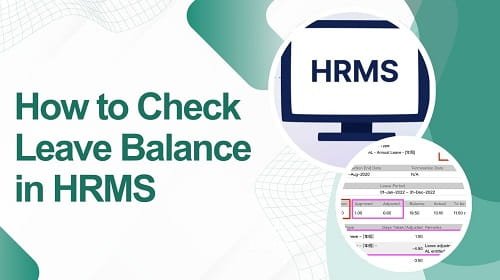
Leave balance is the record of:
- Total leave credited to you
- Leave already taken (availed)
- Leave pending approval
- Leave currently available
HRMS maintains this information automatically based on your organization’s leave policy.
Step-by-Step Process to Check Leave Balance in HRMS
Step 1: Log in to the HRMS Portal
Open your organization’s HRMS website or mobile app.
Log in using your Employee ID / Username and Password.
Make sure you are using the correct official portal link provided by HR or your department.
Step 2: Go to Leave or Attendance Module
After login, look for menu options such as:
- Leave Management
- My Leave
- Attendance
- Employee Self Service (ESS)
Click on the option related to leave.
Step 3: Open Leave Balance / Leave Account
Inside the leave module, search for options like:
- View Leave Balance
- My Leave Account
- Leave Ledger
- Leave Summary
This section shows your complete leave record.
Step 4: Select the Correct Year
Many HRMS portals allow you to select the calendar year.
Make sure the year is set correctly (for example, 2026) so you are viewing your current leave balance.
If the wrong year is selected, the balance may appear as zero or incorrect.
How to Read Your Leave Balance Table
Once the leave balance page opens, you will see a table similar to this:
| Leave Type | Total Credited | Availed | Balance |
| Casual Leave (CL) | 12 | 2 | 10 |
| Earned Leave (EL) | 30 | 0 | 30 |
| Sick / Medical Leave | 10 | 1 | 9 |
| Restricted Holiday (RH) | 2 | 0 | 2 |
Meaning of Each Column
- Total Credited: Leave given to you for the year
- Availed: Leave already taken
- Balance: Leave currently available
Some systems also show:
- Pending / In-Process leave
- Blocked leave (applied but not approved yet)
Important Things to Check Carefully
1. Pending Leave Requests
If you have applied for leave but your manager hasn’t approved it yet, some HRMS systems:
- Temporarily reduce your balance
- Show it as “Blocked” or “In-Process”
Once approved or rejected, the balance updates automatically.
2. Leave Credit Pattern
Different leave types follow different credit rules:
Casual Leave (CL)
Usually credited fully at the start of the year (January).
Earned Leave (EL)
May be credited monthly or twice a year (January and July).
Medical / Sick Leave
Often credited annually but rules vary by organization.
Understanding this helps avoid confusion.
3. Lapse and Carry Forward Rules
- Casual Leave usually expires at year-end
- Earned Leave usually carries forward
- Restricted Holidays must be used within the year
These rules are fixed by your organization’s policy, not the HRMS itself.
How to Check Leave Balance on Mobile App
If your organization uses an HRMS mobile app (for example, apps used by platforms like Keka or greytHR), the process is even simpler:
- Open the HRMS app
- Log in
- Go to My Profile or Leave tab
- Leave balance is usually shown on the first screen
This is very useful for quick checks.
What If Leave Balance Is Incorrect?
If the HRMS shows zero balance or wrong figures, check the following before raising a complaint:
1. Data Update Delay
Sometimes the system takes 24–48 hours to update after:
- Leave approval
- Leave cancellation
Wait for a day and refresh.
2. Reporting Officer Mapping Issue
If your reporting manager is not properly mapped in HRMS, the leave module may not function correctly.
Contact HR or Admin to fix the mapping.
3. Contact HR / Establishment / DDO
If there is still a major mismatch:
- Contact HR or Establishment Section
- Government employees should contact the DDO
Only admins have rights to correct leave balances in the master database.
Useful Tips
- Check your leave balance before applying for leave
- Always select the correct year
- Track pending leave requests regularly
- Take screenshots if you notice errors
- Read your organization’s leave policy once a year
Final Thoughts
Checking your leave balance in HRMS is simple once you know where to look. The system is designed to be transparent so employees can clearly see what leave they have earned and used. Most issues arise not because of the system, but due to incorrect year selection, pending approvals, or delayed updates.
Make it a habit to check your leave balance regularly. It helps you plan better, avoid rejection, and maintain clean records in HRMS.