Changing your email ID in an HRMS (Human Resource Management System) is a small update, but it has a big impact. Your email is used for login alerts, password reset links, payslip delivery, HR notices, and approval notifications. If your email is outdated or inaccessible, you may miss critical information—or even get locked out of your account.
Because HRMS is used across government departments and private organizations, the process is slightly different depending on where you work. However, the core workflow remains the same: update → verify → approval (if required).
This guide explains how to change your email ID in HRMS, covering government portals, private company systems, and what to do if you are locked out.
Types of Email IDs in HRMS (Important to Understand)
Most HRMS platforms store two types of email IDs:
1. Official / Work Email
- Issued by the organization
- Often used as login ID
- Usually editable only by HR/Admin
2. Personal Email
- Used for recovery, notifications, and backups
- Often editable by the employee
Knowing which one you are trying to change avoids confusion.
1. How to Change Email ID in Government HRMS
(e-HRMS 2.0 / Manav Sampada / iHRMS)
In government systems, your email ID is treated as an official identity detail, so changes usually require approval.
Step-by-Step Process
Step 1: Log in to the e-HRMS Portal
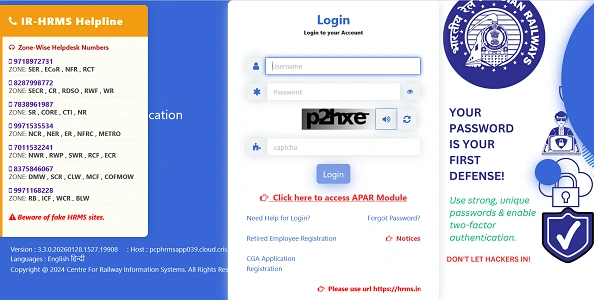
Log in using your existing credentials (often through e-Parichay or department login).
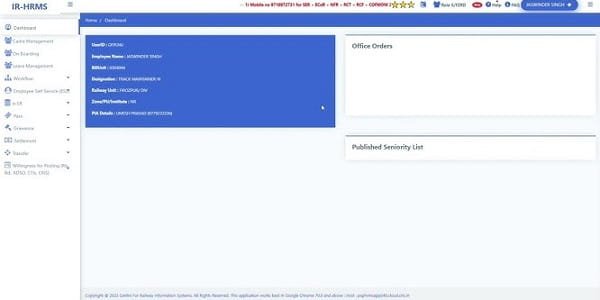
Step 2: Go to “My Profile” or “Personal Details”
From the dashboard, navigate to:
- My Profile
- Personal Information
- Employee Details
Step 3: Open “Contact Details / Communication” Section
Here you will see:
- Mobile number
- Email ID
Step 4: Click Edit (Pencil Icon)
Click the edit option next to the email field.
Enter your new email ID carefully (check spelling).
Step 5: Submit for Approval
Click Submit / Update.
Important:
In most government HRMS portals, the email ID will not update instantly.
The request goes to your Nodal Officer / Establishment Section / DDO for verification.
Step 6: Track Approval Status
Your request status will show:
- Pending Approval
- Approved
- Rejected (with remarks)
Only after approval will the new email reflect in your profile.
2. How to Change Email ID in Private Company HRMS
(Keka, greytHR, Darwinbox, etc.)
Private HRMS platforms usually allow self-service updates, but with clear rules.
A. Changing Personal Email (Self-Service)
This is usually allowed.
Steps:
1. Log in to HRMS
2. Go to My Profile / Me
3. Open Contact Information / Personal Info
4. Click Edit next to email
5. Enter new email ID
6. Click Save / Update
Most systems will send a verification link to the new email.
You must click that link to confirm the change.
Platforms like Keka and greytHR follow this flow.
B. Changing Official / Work Email
In most private companies:
- Employees cannot change work email themselves
- Only HR or IT Admin can update it
You must raise:
- HR ticket
- Email to HR/IT
- Service desk request
Once updated, your login username may also change.
3. What If You Are Locked Out and Can’t Change Email?
This is common when:
- Old email is inactive
- Password reset link goes to wrong email
What You Should Do
1. Contact HR or IT Support
2. Provide:
- Employee ID
- Department
- Company ID proof (if asked)
3. HR/Admin will manually update your email in the backend
4. Use Forgot Password with the new email to regain access
Employees cannot fix this themselves if login access is lost.
Important Things to Keep in Mind
Email as Login ID
In many HRMS systems, your email is your username.
Changing it may change how you log in next time.
MFA / OTP Security
If your HRMS uses:
- OTP on email
- Two-factor authentication
Always ensure your mobile number is also updated, or you may face access issues.
Official vs Personal Email
Best practice:
- Keep official email for company communication
- Keep personal email as a recovery option
If HRMS supports both, update both carefully.
Common Issues and Solutions
Email not updating immediately
Waiting for HR/DDO approval is normal (especially in government HRMS).
Verification email not received
Check spam folder or wait a few minutes before resending.
Edit option not visible
You may not have self-edit rights. Contact HR.
Final Thoughts
Changing your email ID in HRMS is a security-sensitive update, which is why many systems require verification or approval. Whether you work in a government department or a private company, the logic is the same: update → verify → approve.
The key advice is simple:
✔ Keep at least one active and accessible email in HRMS at all times
✔ Update details immediately when your email changes
✔ Contact HR early if you lose access
A correct email ID keeps your HRMS access smooth, secure, and stress-free.