Submitting your Annual Property Return (APR)—also known as Immovable Property Return (IPR)—is not a routine formality. It is a mandatory vigilance requirement for government employees and plays a direct role in your career progression. Promotions, deputations, empanelment, foreign training, and even sensitive postings all depend on whether your property return is filed correctly and on time.
Many employees assume that if they have no property, they can skip the process. That is a serious mistake. A Nil Property Return is also compulsory, and the system records whether you submitted it or not. In 2026, the deadline for filing the property return for the year 2025 remains January 31. Missing this deadline can result in denial of Vigilance Clearance for the entire year, even if the delay is just a few days.
With the rollout of e-HRMS 2.0 and state portals like Manav Sampada, the process is now fully digital, Aadhaar-verified, and time-stamped. This guide explains how to submit your property return in e-HRMS, step by step, along with rules, common mistakes, and best practices.
What Is a Property Return in e-HRMS?
A Property Return is a self-declaration of:
- Immovable property (house, flat, land, plot)
- Movable assets (vehicle, gold, high-value investments, if applicable)
It covers:
- Property owned by you
- Property owned by your spouse or dependent family members
- Property acquired through purchase, inheritance, gift, or construction
The declaration ensures transparency and compliance with conduct rules.
1. How to Submit Property Return in e-HRMS 2.0 (Central Government)
If you are a Central Government employee (CSS, CSSS, cadre services, attached offices), you must file your return through e-HRMS 2.0.
Step-by-Step Process
Step 1: Log In
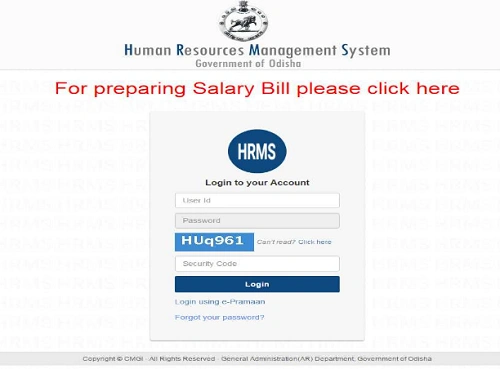
Visit ehrms.gov.in and log in using e-Parichay (NIC / government email credentials).
Step 2: Open the Property Return / IPR Module
From the dashboard, locate:
- Property Return
- IPR
- Annual Property Return
Click to open the filing page.
Step 3: Select the Year
Choose the return year (for example, 2025 for filing in January 2026).
Be careful—once submitted, the year cannot be changed.
Step 4: Choose the Type of Declaration
You will see three common options:
Nil Return
Select this if:
- You and your dependent family members own no immovable property
Even Nil returns require OTP-based submission.
Copy From Previous Year
Use this if:
- Your property details are exactly the same as last year
- No sale, purchase, or change has occurred
This saves time but still requires review and e-signing.
Add / Update Property Details
If you acquired property during the year, enter:
- Location (state, district, address)
- Type (house, flat, land)
- Ownership (self / spouse / joint)
- Cost of acquisition
- Date & mode of acquisition
- Whether prior sanction was taken
Accuracy here is critical.
Step 5: e-Sign and Submit
- Generate Aadhaar-based OTP
- Complete e-Sign
- Submit the return
After submission, download the PDF for your records.
Some departments still require a printed, signed copy to be submitted to the Vigilance Section—check your office instructions.
2. How to Submit Property Return in Manav Sampada (State Government)
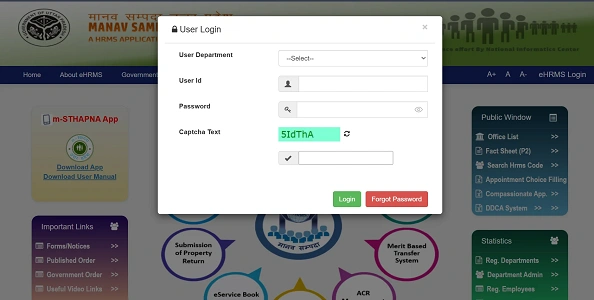
State Government employees (UP, HP, Odisha, etc.) usually file returns through Manav Sampada or state HRMS portals.
General Workflow
Step 1: Log In
Use your User ID / PMIS Code and password.
Step 2: Navigate to Property Return
Go to:
- My Profile
- Annual Property Return
Step 3: Fill Property Details
Manav Sampada usually separates:
- Immovable Property (land, house)
- Movable Property (vehicle, gold, investments above limit)
Add entries carefully and save each section.
Step 4: Submit / Publish
Once all entries are complete:
- Click Submit / Publish
- The form becomes locked after submission
In many states, editing is allowed only for 3–5 days after entry. After that, it is frozen.
Important Guidelines for 2026
| Rule | Requirement |
| Nil Return | Mandatory even if you own no property |
| Deadline | January 31, 2026 |
| Movable Assets | Declared if above prescribed value |
| Sanction Details | Required for property purchased during service |
| Vigilance Impact | Late filing = No Vigilance Clearance |
Common Mistakes to Avoid
- Skipping filing because you have no property
- Selecting the wrong year
- Forgetting to e-sign
- Entering approximate values instead of actual cost
- Missing sanction order details
Any of these can trigger vigilance objections later.
Best Practices
- File early—don’t wait till January 31
- Use “Copy from Previous Year” only after verifying details
- Keep purchase deeds and sanction orders ready
- Download and store the submitted PDF
- Confirm whether hard copy submission is required in your office
Final Thoughts
The Annual Property Return in e-HRMS is not about taxation—it is about integrity, transparency, and vigilance compliance. A missing or late return can quietly block promotions and opportunities for an entire year.
Thanks to e-HRMS, the process is now simpler, faster, and fully digital. If you file carefully, e-sign properly, and meet the deadline, your vigilance record stays clean—and your career path remains smooth.
Treat the property return as a once-a-year safeguard, not a burden.