Your HRMS password protects some of your most sensitive information—salary details, personal data, leave records, and official documents. For this reason, HRMS systems strongly encourage employees to change passwords regularly and follow strict security rules.
Whether you want to update your password for security reasons or you’re locked out and need to reset it, the process follows a standard pattern across most HRMS platforms. This guide explains how to change your password in HRMS, covers common problems, and shares best practices to avoid login issues.
Why Changing Your HRMS Password Is Important
Your HRMS account is linked to:
- Salary slips and payroll data
- Leave and attendance records
- Personal identification details
- OTP-based verification
A weak or compromised password can put your data at risk. That’s why HRMS systems enforce password rules and periodic updates.
Method 1: How to Change HRMS Password (If You Can Log In)
If you already know your current password and just want to change it, this is the simplest method.
Step 1: Log In to HRMS Portal
Open your organization’s HRMS portal and log in using your Employee ID / Username and current password.
Make sure you are using the official portal link provided by HR or IT.
Step 2: Go to Settings or Profile
After logging in, look for:
- Your Profile Picture or Name (usually top-right corner), or
- A Gear / Settings icon
Click on it to open account-related options.
Step 3: Open Security or Account Settings
Select the option labeled:
- Change Password
- Security
- Account Setting
The wording may differ slightly depending on the HRMS.
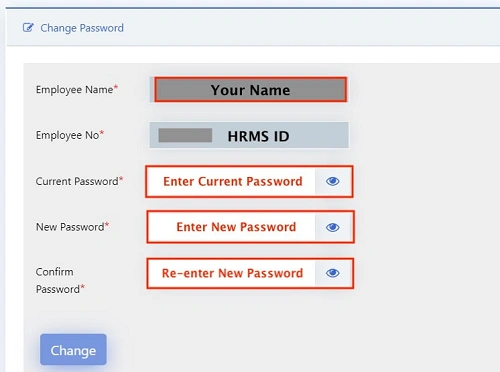
Step 4: Enter Old and New Password
You will typically be asked to enter:
- Current (Old) Password
- New Password
- Confirm New Password
Enter the details carefully and ensure the new password meets security rules.
Step 5: Save or Update
Click Save, Update, or Submit.
In many systems, you will be:
- Logged out automatically
- Asked to log in again using the new password
This confirms the change was successful.
Method 2: Reset HRMS Password (If You Forgot It or Are Locked Out)
If you cannot log in because you forgot your password, you’ll need to reset it from the login screen.
Step 1: Click “Forgot Password”
On the HRMS login page, click Forgot Password or Reset Password.
This option is supported by most platforms such as Keka, ADP, and SAP.
Step 2: Enter Employee ID or Registered Email
Provide the details linked to your HRMS account:
- Employee ID, or
- Official email address
Step 3: OTP or Reset Link Verification
You will receive:
- An OTP on your registered mobile number, or
- A password reset link on your registered email
Enter the OTP or open the link within the allowed time.
Step 4: Set a New Password
Create a new password following HRMS security rules and confirm it.
Once done, you can log in using the new password.
Important: Changing Mobile Number for Password Resets
If OTPs for password reset are going to an old or inactive mobile number, you must update your number first.
- If you can log in: Update it via My Profile → Contact Details
- If you are locked out: Contact HR or IT Helpdesk
Only HRMS administrators can manually update recovery numbers when you don’t have login access.
Standard HRMS Password Rules (Very Important)
Most HRMS platforms require a strong password. Your new password should include:
- Length: At least 8–12 characters
- Uppercase letter: A–Z
- Number: 0–9
- Special character: @, #, $, !, etc.
Example of a strong password:
Hrms@2026
Avoid using your name, date of birth, or employee ID.
Common Problems and How to Fix Them
“Old Password Incorrect”
- Check Caps Lock
- Make sure you’re not confusing 0 (zero) with O (letter)
- Try typing manually instead of copy-paste
OTP Not Received
- Check mobile network and SMS balance
- Wait 1–2 minutes before resending
- Check blocked or spam SMS folder
Account Locked
If you enter the wrong password multiple times, HRMS may lock your account for 30–60 minutes.
Wait and try again, or contact HR/IT for unlock.
Best Practices for HRMS Password Security
- Change your password every few months
- Never share your password or OTP
- Do not save passwords on public computers
- Log out after using HRMS on shared devices
- Update mobile number and email regularly
Final Thoughts
Changing your HRMS password is a simple but critical task for protecting your professional and financial data. If you can log in, the process takes less than two minutes through the settings menu. If you’re locked out, the “Forgot Password” option or HR support will help you regain access safely.
The key is preparation—keep your mobile number active, follow password rules, and update credentials on time. A secure HRMS account ensures uninterrupted access and peace of mind.