Viewing your TDS (Tax Deducted at Source) details in HRMS is essential if you want to understand why a certain amount is deducted from your salary every month, whether your tax declaration is applied correctly, and whether your Form 16 will match your actual deductions.
In 2026, almost all HRMS platforms—government and private—show TDS data in real time, pulled directly from payroll calculations. You just need to know where to look and how to read it properly.
What TDS Details in HRMS Actually Show
Your HRMS does more than just show a number. A proper TDS view includes:
- Monthly TDS deducted
- Cumulative TDS for the financial year
- Taxable income after exemptions
- Section-wise deductions (80C, 80D, HRA, etc.)
- Tax regime selected (Old / New)
- Remaining tax to be deducted
1. How to View TDS Details in e-HRMS 2.0 (Central Government)
For Central Government employees, TDS details are part of the Payroll & Income Tax module.
Step-by-Step
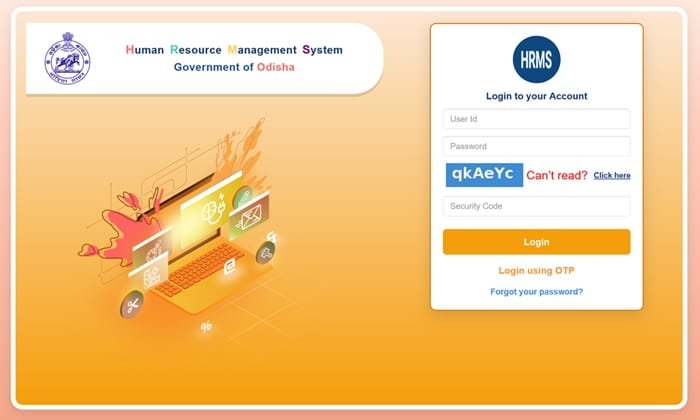
1. Go to ehrms.gov.in
2. Log in using e-Parichay (NIC/Gov email + OTP)
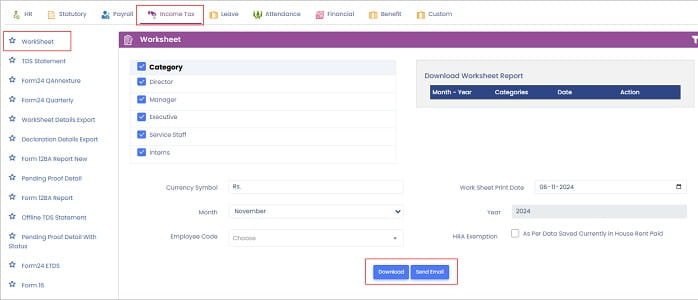
3. From the dashboard, navigate to:
- Employee Services
- Payroll / Income Tax
4. Click on TDS Details, Tax Deduction, or Income Tax Statement
5. Select the Financial Year (e.g., 2025–26)
What You’ll See
- Month-wise TDS deduction
- Gross taxable salary
- Declared investments considered
- Total tax liability
- Balance tax to be recovered
You can usually download a PDF or Excel summary from this screen.
2. State Government HRMS (Manav Sampada / IFMS / HRMS Odisha)
State portals usually show TDS under payroll reports.
Common Navigation Path
1. Login to your State HRMS
2. Go to Payroll / Salary
3. Click Income Tax / TDS Details
4. Choose:
- Financial Year
- Month (optional)
5. View or download the statement
In many states, this is also labeled as:
- Employee Tax Ledger
- TDS Abstract
- Tax Deduction Report
3. Private Company HRMS (Keka, greytHR, Darwinbox, etc.)
Private HRMS platforms make TDS visibility very employee-friendly.
Typical Path (Web)
1. Log in to HRMS
2. Go to Me / My Profile
3. Open Payroll / Finances
4. Click Income Tax or Tax Summary
5. Select the Financial Year
What You Can Check
- Monthly TDS already deducted
- Projected TDS for upcoming months
- Investment declaration vs proof status
- Old vs New tax regime comparison
Most platforms also allow:
- Downloading Year-to-Date (YTD) tax statements
- Viewing Form 16 (Part B) once available
4. How to Cross-Check TDS with Payslip
To ensure accuracy:
- Open your monthly payslip
- Look for the “Income Tax / TDS” line under deductions
- Match it with the HRMS monthly TDS figure
If both match, your payroll is consistent.
5. Common Issues & What They Mean
“TDS suddenly increased”
- Investment proofs not submitted
- Tax regime defaulted to New Regime
- HRA rejected
- PAN not verified
“TDS showing but salary is low”
- Year-end tax adjustment
- Arrear or bonus taxation
- Late declaration update
“TDS not visible”
- Payroll not processed yet
- PAN not linked in HRMS
- Tax module closed temporarily
6. How This Links to Form 16 & AIS
- HRMS TDS data → Form 16
- Form 16 → 26AS / AIS on Income Tax portal
- Any mismatch should be resolved before June
Always verify:
- Total TDS in HRMS = Total TDS in Form 16 = 26AS
Important Tips
- Check TDS every month, not only in March
- Review tax projection after submitting declarations
- Download annual tax statement for records
- Raise a payroll ticket immediately if figures look wrong
Final Words
Your HRMS is the first source of truth for TDS deductions. If the numbers are correct here, everything else—Form 16, ITR filing, refunds—falls into place smoothly. Make it a habit to review your TDS details at least once every quarter.