Viewing your attendance details in HRMS helps you stay in control of your work record. It shows when you punched in and out, whether you were marked late, how many hours you worked, and how attendance impacts your salary and leave.
Today most systems—especially government portals—are no longer manual. Attendance is often pulled directly from biometric or mobile-based systems and synced with HRMS in near real time.
Why Checking Attendance Regularly Matters
Attendance data is linked to:
- Salary and leave deductions
- Late mark or half-day rules
- Performance and compliance
- Leave regularization and audits
If you don’t check it regularly, small errors (missed punch, wrong shift) can silently affect your pay.
1. Government Employees: e-HRMS 2.0 with AEBAS
Most Central Government offices use biometric attendance, which flows from AEBAS (Aadhaar Enabled Biometric Attendance System) into e-HRMS.
Step-by-Step: View Attendance
Step 1: Log in to e-HRMS 2.0 using e-Parichay credentials.
Step 2: On the dashboard, locate:
- Attendance
- AEBAS Attendance
- My Attendance
Step 3: Click View My Attendance / Attendance Report.
Step 4: Select Month and Year.
You’ll usually see a calendar view showing:
- In Time
- Out Time
- Present / Absent / Leave
Important Note
If attendance is not visible or incomplete, your AEBAS ID may not be linked to HRMS.
Check under:
- Profile → Personal Details → Biometric / AEBAS Mapping
If missing, contact your establishment or IT section.
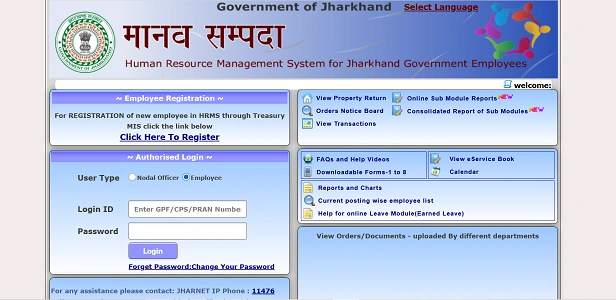
2. State Government HRMS (Manav Sampada, IFMS, etc.)
State HRMS portals also provide attendance reports, though the layout may be simpler.
General Steps
Step 1: Log in to your State HRMS portal.
Step 2: Navigate to:
- Attendance
- Payroll
- Reports
Step 3: Select:
- Attendance Muster
- Daily Attendance Report
Step 4: Choose the date range or month.
Common Attendance Codes You’ll See
- P – Present
- A – Absent
- L – On Leave
- H – Holiday
Some systems also show late marks or half-day indicators.
3. Private Sector HRMS (Web & Mobile)
Private HRMS platforms focus heavily on real-time visibility and correction options.
Option A: Mobile App (Most Common)
1. Open the HRMS mobile app
2. Go to Attendance / Logs
3. View daily punch-in/out, work hours, and location (if enabled)
Option B: Web Portal
1. Log in to HRMS
2. Go to Me / My Profile
3. Click Leave & Attendance
4. Open Attendance Info / My Logs
You can usually see:
- Punch-in and punch-out times
- Geo-location (if enabled)
- Shift name
4. Attendance Regularization (Missed Punch)
If you forgot to punch in or out, HRMS usually shows it as:
- “Missing Log”
- “Absent”
- “Incomplete Attendance”
How to Fix It
- Click Regularize / Adjust Attendance
- Select the date
- Enter correct in/out time
- Add reason
- Submit for manager approval
Until approved, the system may treat the day as absent or half-day.
5. Key Attendance Metrics You Should Monitor
| Metric | What It Means |
| First In / Last Out | Actual arrival and departure |
| Total Work Hours | Time counted for the day |
| Late In / Early Out | Delay against shift rules |
| Shift Name | Confirms correct shift assignment |
| Attendance Status | Present / Leave / Absent |
Always check these before the payroll cut-off date.
Common Problems & Quick Fixes
Attendance not showing
→ AEBAS or biometric ID not linked
Wrong shift shown
→ Ask HR to correct shift mapping
Late mark despite being on time
→ Punch device clock mismatch or missed punch
Salary affected
→ Attendance not regularized before payroll processing
Best Practices
- Check attendance weekly, not monthly
- Regularize missed punches immediately
- Verify shift details after transfers or role changes
- Keep screenshots if something looks wrong
- Don’t wait until salary day to notice errors
Final Thoughts
HRMS attendance tracking is designed to be transparent—but it only helps if you actually look at it. Whether you’re using biometric-based government systems or app-based private HRMS, the rule is the same:
Check early. Correct early. Avoid salary surprises.
A two-minute weekly check can save hours of follow-up later.