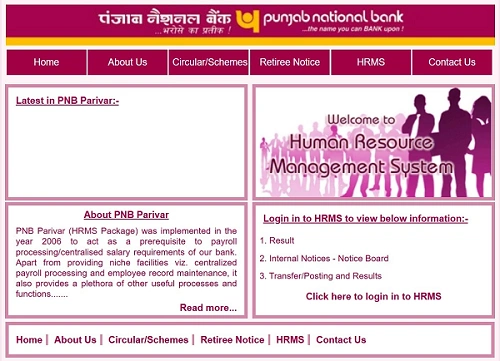
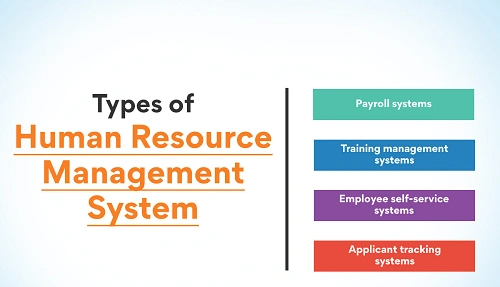
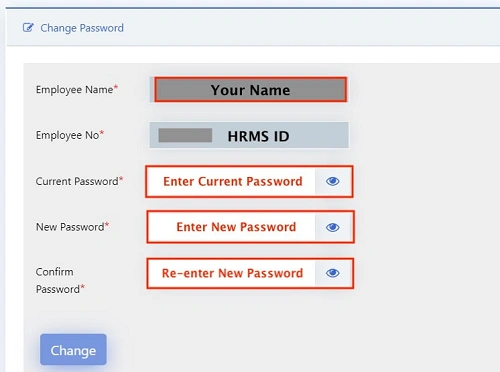
Updating your personal details in an HRMS (Human Resource Management System) is not just a formality. These details are used for salary processing, PF/NPS, insurance, tax records, official communication, and service history. If your information is outdated or incorrect, it can lead to payroll delays, tax mismatches, or even rejection of official claims.
Most modern HRMS portals allow employees to update personal details through the Employee Self Service (ESS) module. However, not all changes are instant—many require approval from HR or the DDO. This guide explains the correct and complete process.
What Are “Personal Details” in HRMS?
Personal details in HRMS usually include:
- Mobile number and email ID
- Permanent and correspondence address
- Marital status
- Family and dependent details
- Nominee information (insurance / PF)
- Bank account details
- PAN, Aadhaar, UAN (view or update request)
- Educational qualifications
Some fields are editable by employees, while others are restricted and approval-based.
Step-by-Step Process to Update Personal Details in HRMS
Step 1: Log in to the HRMS Portal
- Open your organization’s official HRMS website or app.
- Log in using your Employee ID / Username and Password.
- Always ensure you are using the correct and official portal link.
Step 2: Go to “My Profile” or Employee Self Service (ESS)
After login, navigate to one of the following sections:
- My Profile
- Personal Information
- Employee Self Service (ESS)
- View / Update Profile
This section contains all your personal and service-related details.
Step 3: Select the Category You Want to Update
Personal details are usually divided into sub-sections. Common categories include:
1. Communication Details
- Mobile number
- Email ID
Used for OTPs, alerts, payslips, and official messages.
2. Address Details
- Permanent address
- Correspondence / present address
These are important for HRA claims, official letters, and records.
3. Family / Nominee Details
- Spouse, children, dependents
- Nominees for insurance, PF, gratuity
Accuracy here is legally important.
4. Bank and Identity Details
- Bank account number and IFSC
- PAN, Aadhaar, UAN (in some systems)
These directly affect salary credit and tax compliance.
Step 4: Click “Edit” and Enter New Information
Click the Edit button or pencil icon next to the field you want to change.
Enter the updated information carefully.
Important: Some critical fields like name, date of birth, permanent address, or marital status usually require document proof.
Step 5: Upload Supporting Documents (If Required)
For sensitive changes, HRMS may ask you to upload documents such as:
- Aadhaar Card
- PAN Card
- Passport
- Marriage certificate
- Cancelled cheque or bank passbook
Documents are usually accepted in PDF or JPEG format.
Step 6: Submit for Approval
After entering details and uploading documents, click:
- Submit
- Update
- Save & Forward
Do not stop after clicking “Save.”
A request marked as Saved stays in draft and never reaches HR.
What Happens After You Submit?
Approval Workflow
- Your request is sent to HR / Admin / DDO
- They verify the details and documents
Status shows:
- Pending Approval
- Approved
- Rejected (with remarks)
Only after approval will your profile be updated officially.
Important Personal Details You Should Always Keep Updated
| Detail | Why It Matters | Document Often Needed |
| Mobile / Email | OTPs, alerts, payslips | Usually OTP only |
| Address | HRA, official records | Aadhaar / Voter ID |
| Bank Account | Salary credit | Cancelled cheque |
| PAN / UAN | Tax & PF | PAN card |
| Nominee | Insurance & legal claims | Declaration form |
Common Problems and How to Fix Them
Fields Are Greyed Out
Some fields like:
- Date of joining
- Employee grade
- Cadre or designation
are read-only.
If incorrect, you must email HR—self-editing is not allowed.
File Size Error While Uploading
Most HRMS portals restrict upload size (often 500 KB to 1 MB).
Solution:
- Compress the PDF or image
- Upload a clear but smaller file
Status Stuck at “Draft”
This happens when you click Save but not Submit.
Always ensure the status shows Submitted.
Request Rejected
Check the remarks section.
Common reasons include unclear documents or mismatch with records.
Correct the issue and resubmit.
Best Practices While Updating Personal Details
- Update details immediately after any change
- Use clear and valid documents
- Double-check spelling and numbers
- Track approval status regularly
- Keep copies of uploaded documents
Final Thoughts
Updating personal details in HRMS is a shared responsibility. The system allows you to initiate changes, but accuracy and documentation decide how smoothly they get approved. Small mistakes—like forgetting to submit or uploading unclear documents—can delay updates for weeks.
Treat your HRMS profile as your official service identity. Keep it updated, verified, and accurate. It saves time, avoids payroll issues, and ensures your records are always correct when you need them most.