Updating nominee details in HRMS is one of the most important but often ignored tasks by employees. Your nominee information decides who receives benefits like Provident Fund (PF/EPF), Gratuity, Group Insurance, or GIS in case of an emergency. If nominee data is missing or outdated, your family may face delays and legal hurdles later.
Most HRMS platforms—whether government systems like e-HRMS 2.0 or private portals like greytHR—follow a similar Employee Self Service (ESS) workflow. The update is usually approval-based and may require documents and e-signing.
This guide explains the complete and correct process.

Why Updating Nominee Details Is Critical
Nominee details are directly linked to:
- PF / EPF / GPF settlement
- Gratuity payment
- Group Insurance benefits
- Pension and retirement claims
Life events like marriage, childbirth, divorce, or death in family make it mandatory to update nominees. In many HRMS systems, old nominations automatically become invalid after marriage.
Step-by-Step Process to Update Nominee Details in HRMS
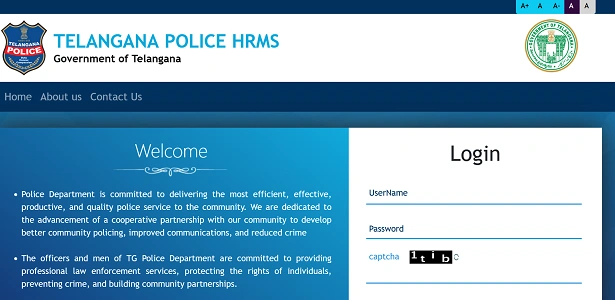
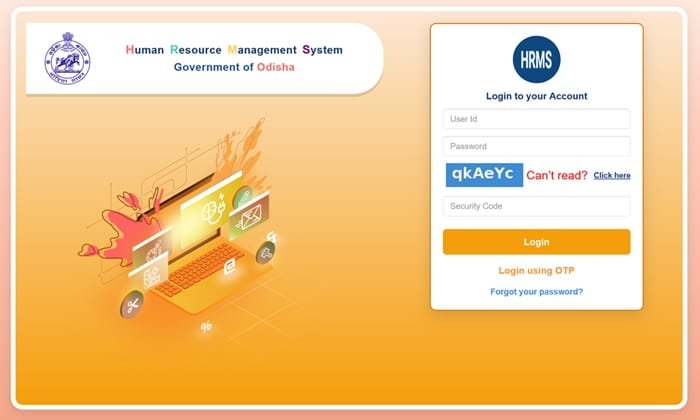
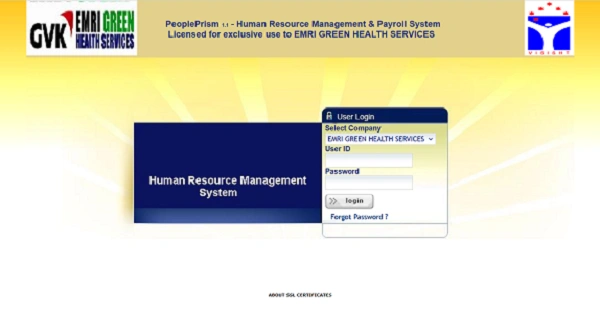
Step 1: Log In to HRMS Portal
- Log in using your Employee ID and Password.
- For government portals like e-HRMS 2.0, login is usually through e-Parichay.
Step 2: Go to Employee Self Service (ESS) / My Profile
After login, navigate to:
- Employee Self Service (ESS)
- My Profile
- Personal Information
This is where personal and family-related records are managed.
Step 3: Open “Family & Nominee” or “Nomination Details”
Look for sections named:
- Family & Nominee
- Nomination Details
- PF / Gratuity Nomination
Most systems show existing nominee data in read-only mode.
Step 4: Raise Change Request / Edit
Click:
- Raise Change Request, or
- Edit / Add Nominee
Select the benefit type you want to update:
- EPF / GPF
- Gratuity
- Group Insurance (GIS)
Each benefit usually requires a separate nomination.
Step 5: Enter Nominee Details
Fill in details carefully:
- Name & Relation
- (Spelling must match Aadhaar)
- Date of Birth
- Share Percentage
- If multiple nominees, total must be 100%
Bank Details (in some HRMS)
- Nominee’s bank account & IFSC
In systems like iHRMS, the nominee must first be added in Family Details before appearing in the nominee dropdown.
Step 6: Upload Supporting Documents
Most HRMS portals require document proof, such as:
- Nominee’s Aadhaar card
- Family declaration form
- Photograph of nominee
Documents should usually be:
- PDF or JPEG
- Clear and legible
- Within size limits (often under 500 KB)
Step 7: Submit and e-Sign
After entering details:
- Click Submit / Forward
- Complete e-Sign using Aadhaar-linked OTP (common in government HRMS)
Without e-signing, the request may remain incomplete.
Mandatory Details Checklist (Keep Ready)
Before starting, keep these details ready for each nominee:
- Aadhaar number
- Date of birth
- Passport-size photograph (JPEG, small size)
- Bank account number & IFSC
- Guardian details (if nominee is a minor)
Important Rules You Must Know
Family Comes First
For PF and Gratuity:
- If you have a family, you must nominate a family member
- Outsiders can be nominated only if you have no family
Minor Nominee Rule
If the nominee is below 18 years:
- You must provide guardian details
- Payments are routed through the guardian
Marriage Changes Everything
In many HRMS systems:
- Nomination made while unmarried becomes invalid after marriage
- You must submit a fresh nomination after marriage
Ignoring this is a common and serious mistake.
Approval Flow After Submission
| Status | Meaning |
| Pending | Request is with Clerk / HR / Admin |
| Verified / Accepted | Nominee updated and frozen in records |
| Rejected | Check remarks (usually document issue) |
Only after approval does the nominee become legally valid.
Common Problems and Solutions
Nominee not appearing in list
→ Add the person first in Family Details
Request rejected
→ Check spelling mismatch or unclear document upload
e-Sign OTP not received
→ Verify Aadhaar-mobile linkage
Best Practices
- Update nominee details immediately after life events
- Double-check share percentage
- Keep scanned documents ready
- Track approval status until accepted
- Review nominee details once every year
Final Thoughts
Updating nominee details in HRMS is not just a routine task—it is a responsibility toward your family. HRMS has made the process transparent and trackable, but accuracy and timely updates still depend on you.
A properly updated and approved nomination ensures that your hard-earned benefits reach the right person without delay or dispute. Take a few minutes today—it can save your family months of stress later.