Submitting a Tour Diary (also called a Tour Journal) in HRMS is a mandatory task for employees who travel on official duty. It is not just a formality. The tour diary acts as an official record of your work during the tour and, in most HRMS systems, it is a pre-condition for submitting your TA (Travelling Allowance) bill.
If your tour diary is not submitted or not approved, the system will usually block your TA claim, no matter how genuine your expenses are. That’s why it’s important to understand the process clearly.
This guide explains how to submit a tour diary in HRMS, what details are compulsory, how it links with TA bills, and how to avoid common mistakes.
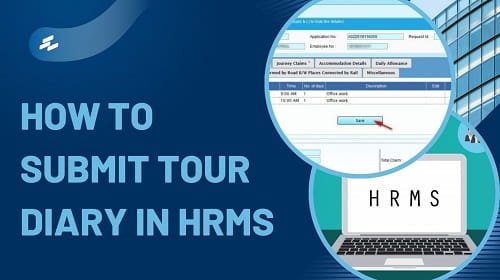
What Is a Tour Diary in HRMS?
A tour diary is a day-wise record of official activities performed during an approved tour. It usually includes:
- Travel dates and stations
- Mode of travel
- Work performed each day
- Halt and stay details
It must always match the approved Tour Program / Tour Order issued before travel.
Before You Start: Important Prerequisites
Before submitting a tour diary, make sure:
- Your Tour Program / Tour Order was approved in HRMS
- Tour dates do not overlap with leave or another tour
- You are submitting the diary within the allowed time limit (often 10–15 days after return)
Without an approved tour order, most systems will not allow diary submission.
Step-by-Step Process to Submit Tour Diary in HRMS
Step 1: Log In to HRMS
Log in to your HRMS portal using your Employee ID and Password.
For government systems like e-HRMS or Railway HRMS, use the official login method provided by your department.
Step 2: Open Tour / TA Module
From the dashboard, navigate to:
- Tour Management
- My Tour
- Claims & Reimbursements
- TA / Tour Module
The exact name may differ, but tour and TA options are usually grouped together.
Step 3: Select “Tour Diary”
Click on:
- Create Tour Diary
- Submit Tour Diary
- Tour Journal
This opens the diary entry screen.
Step 4: Link the Approved Tour Order
Most HRMS systems will ask you to select:
- Tour Program / Order Number
- Approved Tour Reference
This step is mandatory. The diary must be linked to the same tour that was sanctioned earlier.
If your tour order does not appear, do not proceed—see troubleshooting below.
Step 5: Enter Day-Wise Tour Details
You will usually see a table where you must fill details for each day of the tour.
Typical fields include:
Date
Select each tour date one by one.
Station From / To
Mention the place of departure and arrival.
Mode of Travel
Example: Train, Air, Department Vehicle, Taxi.
Departure & Arrival Time
Use 24-hour format (e.g., 09:30, 18:45).
These timings are important for DA calculation.
Halt / Stay Details
Mention where you stayed: Circuit House, Guest House, Hotel, etc.
Work Done
Write clear, specific work descriptions, such as:
- “Inspection of field office”
- “Attended review meeting at HQ”
- “Training program on project implementation”
Avoid vague entries like “Official work”.
Step 6: Save and Forward the Tour Diary
After entering all days:
- Click Save
- Then click Forward / Submit to Reporting Officer
Do not stop at “Save” alone. A saved diary is not submitted.
Linking Tour Diary with TA Bill (Very Important)
Here is the key rule you must remember:
TA Bill cannot be processed unless the Tour Diary is approved.
What Happens Next?
- Your Reporting Officer reviews and approves the diary
- Status changes to Approved / Diary Verified
- Only then does HRMS allow you to:
- Enter travel expenses
- Submit TA bill
If the diary is pending or rejected, TA submission remains blocked.
Mandatory Details You Must Enter Carefully
| Field | Why It Matters |
| Departure / Arrival Time | Used for DA eligibility |
| Mode of Travel | Must match tickets |
| Purpose of Tour | Must match tour order |
| Halt Details | Affects allowance calculation |
Mismatch in these details often leads to objections.
Common Problems and How to Fix Them
“Tour Order Not Visible”
- Tour program may not be marked as Sanctioned
- Contact your Admin / Establishment Section
“Overlapping Dates” Error
- You may already have:
- Leave approved, or
- Another tour for the same dates
- Cancel or correct the conflicting entry first
Back-Dating Not Allowed
Many HRMS portals enforce a cut-off period (for example, diary must be submitted within 15 days of return).
If missed: You may need delay condonation from HOD
Tips for Smooth and Fast Approval
- Write clear and specific work descriptions
- Ensure diary purpose matches tour order
- Enter exact dates and timings
- Submit diary immediately after return
- Attach documents (attendance certificate, meeting letter) if allowed
Final Thoughts
Submitting a tour diary in HRMS is not just paperwork—it is the foundation of your TA claim. A properly filled and timely submitted diary ensures:
- Faster approval
- Smooth TA reimbursement
- No audit or objection issues later
Treat the tour diary as an official report of your duty. Be accurate, be timely, and be clear. When done right, the HRMS workflow becomes smooth, predictable, and stress-free—for both you and the approving officers.