Generating an arrear bill in HRMS is a critical payroll activity carried out when an employee is entitled to back-pay. This situation usually arises due to delayed salary revisions, promotions, annual increments, or retrospective Dearness Allowance (DA) hikes. Since arrear payments involve financial liability and statutory deductions, the process is handled only by authorized users such as HR Admins, Accounts Officers, or DDOs (Drawing and Disbursing Officers).
If you are trying to understand how arrear bills are generated in HRMS—or you are responsible for processing one—this guide explains the full workflow in clear and practical terms.
What Is an Arrear Bill in HRMS?
An arrear bill is a payroll adjustment bill that pays the difference between salary already paid and salary that should have been paid for a past period. HRMS systems calculate this difference automatically once the correct pay data is updated.
Common reasons for arrear generation include:
- Late implementation of promotion or pay fixation
- Annual increment applied after delay
- DA increase implemented retrospectively
- Pay revision under new pay commission
- Correction of salary errors
Important Note for Employees
If you are an individual employee, you cannot generate your own arrear bill in HRMS. You must submit:
- A copy of the office order (promotion, increment, DA revision, etc.)
- A written request to HR or Accounts
The arrear bill is generated only through the admin or DDO login.
Pre-Requisites for Arrear Bill Generation
Before starting the arrear process, certain conditions must be fulfilled. Skipping these steps is the most common cause of errors.
1. Update Employee Service Book / Profile
Ensure that the employee’s revised pay details are correctly updated in the HRMS, including:
- New basic pay
- Pay level or grade
- Increment date
- Effective date of revision
If this data is not updated, the system will calculate incorrect arrears.
2. Identify the Arrear Period
Clearly determine:
- From Date: When the revision should have started
- To Date: When the revised pay was actually implemented
Example:
If DA revision was effective from January but implemented in June, the arrear period is January to May.
Step-by-Step Process to Generate Arrear Bill in HRMS
Menu names may vary slightly across platforms like SAP, Oracle, or state government HRMS portals, but the workflow remains largely the same.
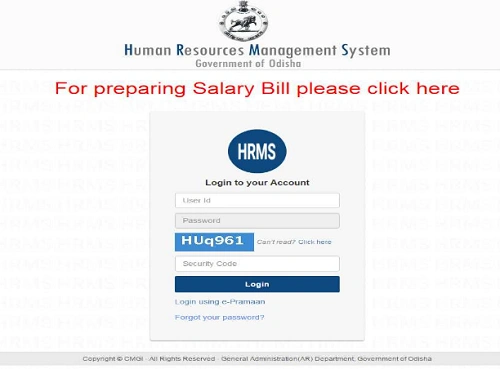
Step 1: Log in with Admin / DDO Credentials
Access the HRMS portal using Admin, DDO, or Payroll Officer login.
Regular employee logins do not have access to arrear modules.
Step 2: Navigate to Arrear Module
Go to:
- Payroll
- Bill Processing
- Salary Management
Look for options such as:
- Arrear Management
- Generate Arrear Bill
- Arrear Processing
Step 3: Select Arrear Type
Choose the correct arrear category. Common options include:
- Salary Arrear – missed salary or correction
- Increment Arrear – delayed annual increment
- DA Arrear – retrospective DA hike
- Promotion Arrear – pay difference after promotion
Selecting the wrong type can lead to incorrect calculations.
Step 4: Select Employee(s) and Period
- Search employee using Employee ID, or
- Select a group (office, unit, department)
Then enter:
- From Date
- To Date
Many systems provide a “Draw vs Due” or “Calculate Difference” option. Click this to let HRMS compute the arrear amount.
Step 5: Review Calculation and Deductions
The system will display:
- Month-wise arrear amount
- Gross arrear payable
- Applicable deductions (PF, NPS, Income Tax, etc.)
Verify carefully:
- Basic pay difference
- DA percentage
- Statutory deductions
If required, make corrections before proceeding.
Step 6: Save and Process the Arrear
Once verified:
- Click Save, Process, or Generate
- The system creates an Arrear Bill Number
At this stage, the bill is usually in draft or processed status.
Step 7: Submit Arrear Bill for Approval
Navigate to:
- Bill Submission
- Forward to Treasury / Accounts
- Submit for Approval
Some systems require:
- Digital signature
- DDO authentication
- Checker or auditor approval
Once approved, the arrear amount is released along with salary or as a separate payment.
Common Issues During Arrear Generation
Data Mismatch Error
Occurs when revised pay is not updated before arrear calculation.
Overlapping Period Error
Happens if an arrear bill already exists for the same period.
Cancel or close the old draft before generating a new one.
Tax and TDS Issues
Arrears are taxable. Ensure:
- Correct TDS calculation
- Section 89(1) relief is applied where applicable
Incorrect tax setup can cause compliance issues.
Final Thoughts
Generating an arrear bill in HRMS is a sensitive and rule-driven process. Accuracy in pay data, dates, and deductions is essential to avoid audit objections and employee grievances. While the system automates calculations, responsibility still lies with the admin or DDO to verify every detail before submission.
For employees, the key takeaway is simple: submit your office order on time and follow up with HR or Accounts. For administrators, proper preparation and verification ensure arrears are processed smoothly, correctly, and without future complications.