Downloading your payslip from HRMS is one of the most common tasks for employees. A payslip is not just a salary statement—it is an official document used for income proof, tax filing, loans, visas, and employment verification.
Because HRMS is a general term, the exact screen layout may differ depending on whether you work in a Central Government department, State Government office, or a private organization. However, the process is almost identical across all HRMS portals.
This guide explains how to download your payslip from HRMS, covers different portal types, explains PDF passwords, and helps you fix common issues.
What You Need Before Downloading a Payslip
Before starting, ensure:
- You have your Employee ID / Username
- Your HRMS password is active
- Salary for that month has been processed
- Pop-ups are enabled in your browser (important)
1. Standard Procedure to Download Payslip from HRMS
This method works for almost all HRMS portals.
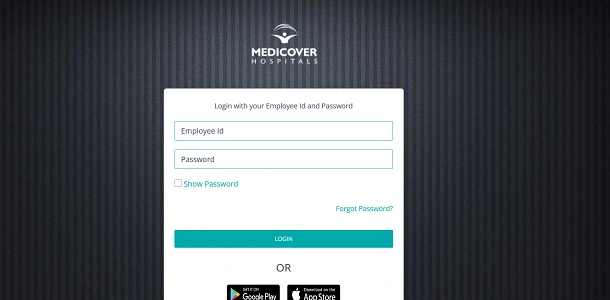
Step 1: Log in to HRMS Portal
Open your organization’s official HRMS website.
Log in using your Employee ID and Password.
Always use the correct portal link shared by HR or your department.
Step 2: Navigate to Payroll / Salary Section
After login, look for menu options such as:
- Payroll
- My Compensation
- Salary Details
- Finances
- Reports
Click on the option related to payroll or salary.
Step 3: Click on “Payslip” or “Salary Slip”
Inside the payroll section, select:
- View Payslip
- Salary Slip
- Payslip History
This opens the payslip selection page.
Step 4: Select Month and Year
Choose:
- Year (for example, 2026)
- Month (for example, January)
Make sure you select the correct financial or calendar year, otherwise the payslip may not appear.
Step 5: View or Download Payslip
- Click View to open the payslip on screen
- Click Download / PDF icon to save it to your device
Your payslip will be downloaded as a PDF file.
2. Payslip Download Based on Portal Type
A. Central Government Employees (e-HRMS 2.0)
If you are a Central Government employee:
- Portal: ehrms.gov.in
- Path: Login → My Dashboard → Payroll → Payslip
OTP verification may be required for security.
B. State Government Employees
State governments use their own HRMS portals (e.g., Manav Sampada, iHRMS).
General path:
Login → Employee Dashboard → Salary / Payroll → Payslip
If you don’t see the option, check with your Establishment Section or DDO.
C. Private Company HRMS Portals
Most private organizations use platforms such as Keka, greytHR, or ADP.
Common path:
- Go to Me / My Profile
- Open Finances or Salary
- Click Payslips
Many portals also allow downloading:
- Annual salary summary
- Form 16
- Tax computation
3. Payslip PDF Password (Very Important)
Most HRMS systems protect payslip PDFs with a password.
Common Password Formats
First 4 letters of your name (CAPS) + Date of Birth (DDMM)
- Example:
- Name: AMIT
- DOB: 15 August
- Password: AMIT1508
Employee ID (full or partial)
If the password doesn’t work:
- Check HRMS instructions shown on screen
- Ask HR or payroll team
4. Why You May Not See Your Payslip (Troubleshooting)
Payslip Not Showing for Current Month
- Salary may still be under processing
- Payslips usually appear 2–3 days before or on salary credit date
Wrong Year Selected
Always double-check the year dropdown. This is the most common mistake.
Pop-Up Blocked
If clicking “View” does nothing:
- Check browser address bar
- Allow pop-ups for the HRMS site
- Refresh and try again
Access Removed (Ex-Employee)
Many companies disable HRMS access after exit.
Solution:
- Email HR requesting payslip or temporary access
- Payslips are usually provided officially on request
5. Where to Find Old Payslips and Annual Statements
| Document | Location in HRMS |
| Latest Payslip | Dashboard / Payroll |
| Old Payslips | Salary History / Archive |
| Annual Salary | Financial Summary |
| Form 16 | Tax / Income Tax Section |
Useful Tips
- Download and save payslips every month
- Keep copies in cloud storage or email
- Always check deductions and net pay
- Use payslips for tax planning and loans
- Never share payslip PDFs publicly
Final Thoughts
Downloading your payslip from HRMS is a simple process once you know where to look. While portal designs differ slightly, the core steps—login, payroll section, select month, download PDF—remain the same everywhere.
If you cannot access your payslip, the issue is usually related to salary processing, wrong year selection, or browser settings, not the HRMS itself. When in doubt, your HR or Accounts team is the final authority.
A payslip is more than a salary record—it’s an important financial document. Make it a habit to download and store it safely every month.