Attendance errors happen. A missed punch, a biometric glitch, a field visit, or a shift mismatch can all mark you Absent even when you worked. HRMS fixes this through Attendance Regularization—a formal, approval-based correction so your salary and leave aren’t affected.
Below is a practical guide for government and private-sector HRMS users, plus deadlines and common mistakes to avoid.
What Is Attendance Regularization?
Attendance regularization is the official correction request you submit when:
- You forgot to punch in/out
- The biometric device failed
- You were on On Duty (OD), tour, or training
- Your shift was recorded incorrectly
Until it’s approved, the system may treat the day as Absent, Half-day, or Short Hours.
1) Government HRMS (e-HRMS 2.0 / Manav Sampada)
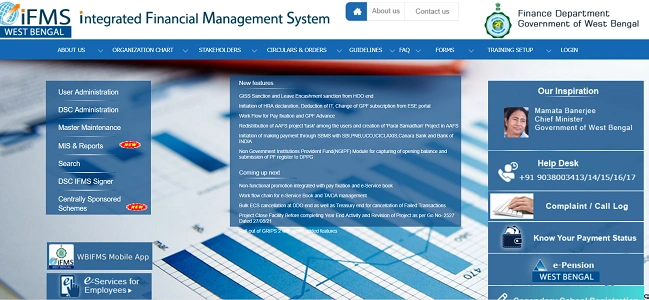
In government offices, attendance usually flows from biometric systems into HRMS. Corrections require justification and approval.
Step-by-Step
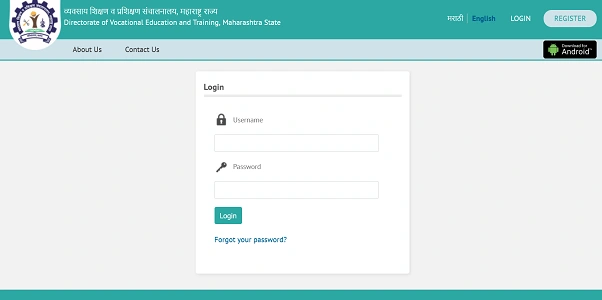
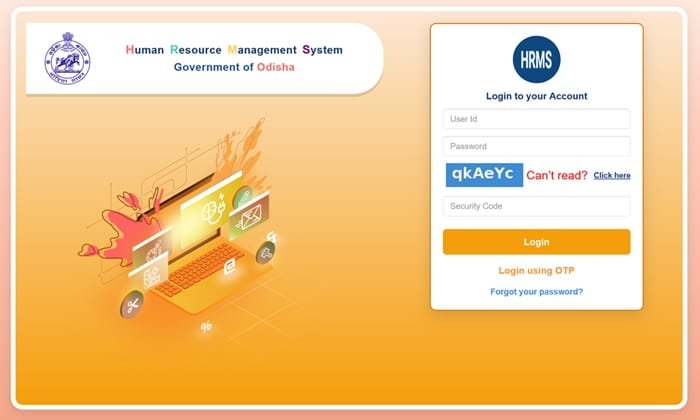
1. Log in to HRMS (via official login).
2. Go to Attendance → View Attendance Report.
3. Identify the date with Missing In/Out or Absent.
4. Click Attendance Regularization / Exception Marking.
5. Select Reason (from dropdown):
- Biometric Failure
- On Duty (OD)
- Tour/Training
- Official Work Outside Office
6. Add a short note (where you were and why the punch is missing).
7. Submit for approval to your Reporting/Nodal Officer.
If no self-service button appears:
Some setups don’t allow direct edits. In that case, submit a manual request to the Establishment/IT/DDO with:
- Screenshot of the error
- Supporting proof (tour order, meeting note, OD approval)
2) Private HRMS (Self-Service Regularization)
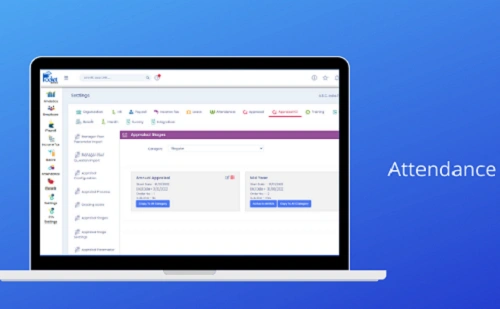
Private platforms make this faster with in-app corrections and manager approval.
Example: Keka
- Me → Attendance
- Find the date → Options (⋮) → Regularize
- Add/Update In–Out times
- Choose reason → Request
Example: greytHR
- Attendance → Attendance Info → My Regularizations
- Click + on the affected date
- Enter correct timings + reason
- Submit
Most systems show the request status (Pending/Approved/Rejected) right on the attendance screen.
3) Common Reasons (Use the Right One)
Pick the reason that matches reality—approvers look for this.
- Missed Punch: Forgot to swipe in/out
- On Duty (OD): Field visit, client meeting, official work outside office
- Technical Issue: Biometric/app/device problem
- Shift Mismatch: Worked a different shift than assigned
- Tour/Training: Official travel or training days
4) Deadlines You Must Watch
- Monthly cut-off: Corrections usually must be submitted by the 20th–25th (varies by org).
- Before payroll: If you miss the cut-off, salary deductions may already be locked.
- Same-month rule: Many systems don’t allow backdated fixes after payroll closes.
Tip: Regularize as soon as you notice the error—don’t wait.
5) What Happens After You Submit?
- Pending: Waiting for manager/HR review
- Approved: Attendance updated; impact reflected in payroll
- Rejected: Check remarks; resubmit with correct reason/proof
6) Common Problems & Quick Fixes
- “Regularize” button missing → Ask HR to enable ESS or submit manual request.
- Approved but still absent → Refresh after sync; payroll systems may update overnight.
- Wrong shift causing late mark → Request shift correction first, then regularize.
- Salary already deducted → Raise a payroll ticket with the approval reference.
Best Practices
- Check attendance weekly.
- Submit regularization immediately for missed punches.
- Use specific reasons and add a short note.
- Attach proof when on OD/tour.
- Track status until it shows Approved.
Final Word
Attendance correction in HRMS isn’t about “editing”—it’s about documented, approved regularization. Follow the steps, respect deadlines, and choose the right reason. Do that, and missed punches won’t turn into missed pay.