Viewing your salary details in an HRMS is not limited to downloading a monthly payslip. A proper HRMS gives you a full picture of your compensation—your salary structure (CTC), monthly earnings and deductions, salary revisions, and annual income summary. Knowing where to find this information helps you plan taxes, verify pay accuracy, and track your career growth.
While the layout differs slightly across systems—government portals like e-HRMS 2.0 or Manav Sampada, and private platforms like Keka or greytHR—the logic and navigation remain mostly the same. This guide explains how to view complete salary details in HRMS, step by step.
What Are “Salary Details” in HRMS?
Salary details usually include:
- Your salary structure / CTC
- Monthly earnings and deductions
- Net take-home salary
- Salary revision or increment history
- Annual earnings summary (YTD)
These details are spread across different sections of the HRMS, not just the payslip page.
1. How to View Your Current Salary Structure (CTC)
This section shows how your total salary is divided into different components.
Step-by-Step Path
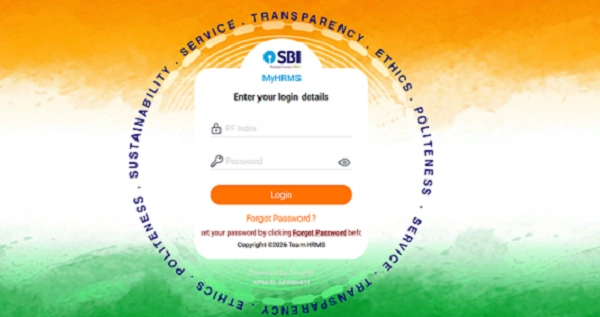
1. Log in to your HRMS portal using Employee ID and Password
2. Go to:
- My Profile, or
- Employment Details, or
- Compensation / Salary Details
Common menu names include:
- Salary Details
- Compensation
- Pay Structure
What You Will See
1. Earnings Components
- Basic Pay
- HRA (House Rent Allowance)
- Conveyance
- Special Allowance
- Other fixed allowances
2. Deduction Components
- Provident Fund (PF / NPS)
- ESI (if applicable)
- Professional Tax
- Income Tax (TDS)
3. Summary
- Gross Salary
- Total Deductions
- Net Take-Home Pay
This section answers the most common question: “How is my salary calculated?”
2. How to View Monthly Salary Breakdown
If you want to see month-wise salary details (without downloading the PDF):
Path
- Login → Payroll / Salary → Salary Details / Payslip View
Select the month and year, and the system will show:
- Earnings for that month
- Deductions applied
- Net salary credited
This is useful for checking changes due to:
- Leave without pay
- Overtime or incentives
- Tax adjustments
3. How to View Salary Revision or Increment History
To track increments, promotions, or pay revisions, HRMS maintains a salary history.
Path
- Performance or Career
- Salary History / Increment History
- Compensation Changes
What You’ll See
- Effective date of revision
- Old salary vs new salary
- Increment percentage or amount
- Remarks (promotion, annual increment, pay commission, etc.)
Enterprise systems like SAP SuccessFactors and private HRMS tools clearly maintain this history.
4. How to View Annual Salary Statement (YTD)
This section is especially useful for:
- Income tax filing
- Loan or visa applications
- Verifying total earnings in a financial year
Path
- Payroll → Reports
- Annual Earnings Statement or YTD Summary
What It Shows
- Month-wise earnings
- Total gross salary for the year
- Total deductions
- Net income till date
Many platforms allow downloading this as a PDF or Excel file.
5. Portal-Wise Quick Navigation Guide
Here’s a general idea of where salary details are found in popular systems:
Government e-HRMS 2.0
- Login → My Dashboard → Payroll → Salary Details
Private HRMS (like Keka or greytHR)
- Me / My Profile → Finances → Salary / Compensation
Enterprise Platforms
- Employee File → Compensation section
6. Viewing Salary Details on Mobile App
If your organization provides a mobile app:
- Open the HRMS app
- Log in
- Tap on Profile or Salary Info
Most apps show:
- Current CTC
- Latest net salary
- Quick salary summary
This is convenient for quick reference without logging in on a computer.
Important Tips While Checking Salary Details
- Always verify basic pay and PF deductions
- Check if tax deductions match your declarations
- Review salary details after every increment
- Compare payslip with salary structure for accuracy
- Report discrepancies immediately to HR or Payroll
What If Salary Details Are Missing or Incorrect?
Common reasons include:
- Salary revision not updated yet
- Payroll still under processing
- Access restrictions for certain fields
Solution:
- Wait 24–48 hours after payroll processing
- Contact HR / Accounts / Establishment Section
- Government employees should contact the DDO
Only admins can correct salary data in HRMS.
Final Thoughts
Viewing salary details in HRMS is about understanding your complete compensation, not just your net pay. A well-designed HRMS allows you to track your salary structure, monthly earnings, deductions, increments, and annual income—all in one place.
Make it a habit to review your salary details regularly. It helps you stay informed, plan taxes better, and catch errors early. HRMS is designed to give transparency—use it fully to stay in control of your professional finances.