Linking your PAN (Permanent Account Number) in HRMS is a mandatory compliance step, not a cosmetic profile update. Your PAN is used for income tax (TDS) deduction, Form 16 generation, annual tax filing, and salary reporting to the Income Tax Department.
If PAN is missing, incorrect, or not verified, HRMS can:
- Deduct higher TDS
- Block Form 16
- Mark salary as “PAN not furnished”
- Trigger audit or payroll holds
Because of this, PAN updates are handled through a controlled KYC workflow with verification and approval.
Before You Start (Very Important)
Make sure:
- Your PAN is active and valid on the Income Tax portal
- Name and Date of Birth on PAN match HRMS records
- PAN is not already linked to another employee ID
- A clear scan of PAN card (PDF/JPEG) is ready
If there is a name mismatch (e.g., initials vs full name), correct it before submitting in HRMS.
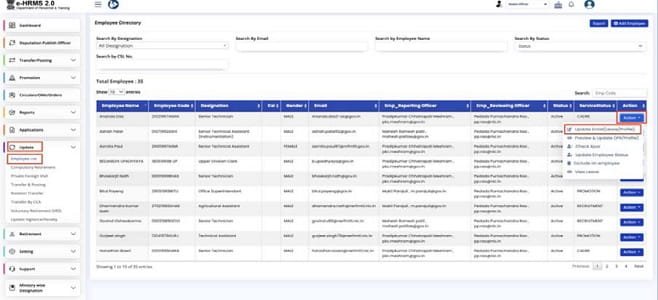
1. How to Link PAN in e-HRMS 2.0 (Central Government)
In Central Government systems, PAN is linked with Payroll, TDS, Form 16, and Bhavishya (pension). Direct editing is usually locked.
Step-by-Step Process
Step 1: Login
- Visit ehrms.gov.in
- Log in using e-Parichay (NIC / Gov email + OTP)
Step 2: Navigate to PAN Section
From dashboard:
- Go to My Profile / Employee Details
- Open Tax / KYC / Identity Details
- Locate PAN Number
The field will usually be Read-Only.
Step 3: Raise PAN Linking Request
- Click Raise Change Request
- Select PAN Update / PAN Seeding
- Enter your 10-character PAN (e.g., ABCDE1234F)
- Enter reason (e.g., “PAN not linked earlier” or “Correction”)
Step 4: Upload PAN Proof
Upload:
- Scanned copy of PAN card (front side)
- PDF or JPEG
- Clear and readable (usually < 500 KB)
Do not upload screenshots from apps.
Step 5: Submit for Approval
- Click Submit
- Status becomes Pending with DDO / Nodal Officer
- PAN is verified against payroll and IT records
Once approved, the PAN is frozen in HRMS.
2. State Government HRMS (Manav Sampada / IFMS / HRMS Odisha)
Most state portals follow a similar ESS-based approach.
Common Steps
1. Login to state HRMS
2. Go to My Profile → Tax / KYC Details
3. Click Edit / Raise Request
4. Enter PAN number
5. Upload PAN card
6. Submit for approval
In some states:
- PAN linking is allowed only once
- Re-correction requires written permission from DDO
3. Private Company HRMS (Keka, greytHR, Darwinbox)
Private-sector platforms usually allow PAN linking through Self Service, but approval is still required.
Option A: Self-Service
- Me → Profile → Tax / KYC
- Enter PAN
- Upload PAN card
- Save & submit
Option B: Helpdesk / Request Hub
- Raise a ticket: “PAN Update / KYC Verification”
- HR validates and approves
4. How to Check If PAN Is Successfully Linked
After approval:
- Go to Tax / Payroll → Income Tax
Check PAN Status:
- Linked / Verified / Active
During salary processing, TDS will reflect correctly only if PAN is verified.
5. Common Errors & Fixes
“Invalid PAN”
- PAN format must be ABCDE1234F
- No spaces or lowercase letters
“Name mismatch”
- HRMS name must match PAN database
- Correct name in PAN or HRMS first
“PAN already exists”
- PAN may be linked to an old employee ID
- Contact HR to unlink and re-seed
“Higher TDS deducted”
- Happens when PAN not verified
- PAN linking fixes this from next payroll cycle
6. Timeline You Should Expect
| Stage | Time |
| Submission | Immediate |
| Admin verification | 1–3 working days |
| Payroll sync | Next salary cycle |
Important Notes (Do Not Ignore)
- Never share PAN OTP or tax login details
- One PAN = one employee record
Incorrect PAN can delay:
- Form 16
- Income tax filing
- Loan approvals
Always download digitally verified Form 16 after PAN linking
Final Note
Linking your PAN in HRMS is a non-negotiable compliance step. Do it early, do it accurately, and verify approval status. Once PAN is frozen and synced, your salary, tax, and year-end documents flow smoothly without last-minute issues.
![List of Traditional Dress of Manipur [For Men and Women]](https://hrmsunfold.com/wp-content/uploads/2026/06/List-of-Traditional-Dress-of-Manipur-For-Men-and-Women.jpg)