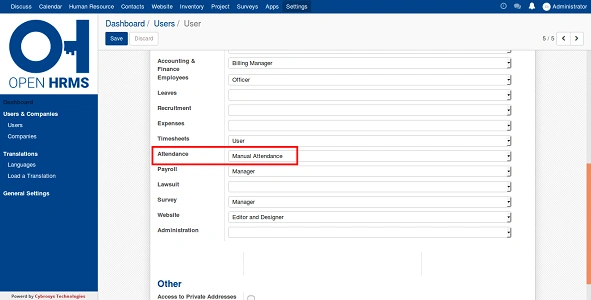
Your mobile number is one of the most important details in any HRMS (Human Resource Management System). It is directly linked to OTP verification, password resets, salary alerts, leave approvals, and other security notifications. If your mobile number is outdated or inactive, you may face login issues or miss important updates.
Fortunately, most HRMS platforms allow employees to update their mobile number easily. However, the process depends on whether you can still access your account. This guide explains all possible ways to change your mobile number in HRMS, including what to do if you are locked out.
Why Updating Mobile Number in HRMS Is Important
Your registered mobile number is used for:
- OTP during login or password reset
- Salary and payroll alerts
- Leave and attendance notifications
- Security and account verification
An incorrect or inactive number can block your access completely. That’s why HRMS systems treat mobile number changes as a security-sensitive action.
Method 1: Change Mobile Number Through Self-Service (Most Common)
If you can still log in to your HRMS account, this is the easiest and fastest method.
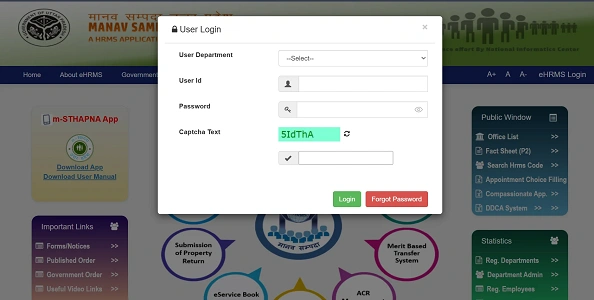
Step 1: Log in to HRMS Portal
Open your organization’s HRMS portal and log in using your Employee ID / Username and Password.
Make sure you are using the correct official portal link provided by HR or IT.
Step 2: Go to Employee Self Service (ESS) or My Profile
After login, navigate to:
- Employee Self Service (ESS)
- My Profile
- Personal Information
The exact name may differ, but profile-related options are usually clearly visible on the dashboard.
Step 3: Open Contact or Communication Details
Inside your profile, look for sections such as:
- Contact Details
- Communication Information
- Personal Details
Here, you will see your registered mobile number and email ID.
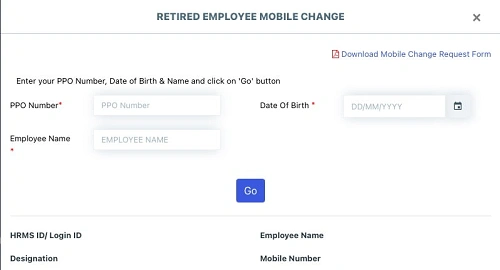
Step 4: Edit Mobile Number
Click on the Edit option or the pencil icon next to your mobile number.
Enter your new mobile number carefully:
- Use the correct 10-digit format
- Ensure the SIM is active and with you
Step 5: OTP Verification
For security reasons, most HRMS systems send an OTP (One-Time Password) to the new mobile number.
- Enter the OTP correctly
- This confirms the number belongs to you
Without OTP verification, the update will not be saved.
Step 6: Save or Submit
Click Save, Update, or Submit.
You should see a confirmation message such as:
“Mobile number updated successfully”
Some systems also send a confirmation SMS or email.
Method 2: When You Are Locked Out of HRMS
If you cannot log in because:
- OTP is going to an old or lost number
- Your mobile number is inactive
- You forgot your password and OTP is required
In this case, self-service will not work.
What You Should Do
Step 1: Contact HR, DDO, or IT Administrator
Reach out to:
- HR Department
- DDO (Drawing and Disbursing Officer)
- IT Helpdesk / HRMS Admin
They are the only ones authorized to update mobile numbers manually.
Step 2: Provide Identity Verification
For security reasons, they may ask for:
- Employee ID
- Department and designation
- A copy of government ID (Aadhaar, PAN, or Driving License)
This ensures that no one else can change your details.
Step 3: Manual Update in Master Database
The administrator updates your mobile number in the HRMS master records.
This process usually takes: 24 to 48 hours
Once updated, you will receive confirmation and can log in normally.
Common Problems and Solutions
OTP Not Received
- Check network signal
- Wait 1–2 minutes before resending
- Ensure the number is entered correctly
Edit Option Disabled
Some organizations restrict self-editing. In such cases, only HR can update contact details.
Multiple Failed OTP Attempts
Your account may get temporarily locked. Contact HR or IT support immediately.
Important Tips to Remember
- Always keep your mobile number updated in HRMS
- Do not share OTPs with anyone
- Update email ID along with mobile number if possible
- After changing the number, log out and log in again to confirm
Final Thoughts
Changing your mobile number in HRMS is a small task, but it plays a major role in account security and smooth access. If you still have login access, the self-service method takes just a few minutes. If not, HR or the DDO is the only safe and official route.
The key takeaway is simple: an active mobile number keeps your HRMS access uninterrupted. Update it on time, verify it properly, and you’ll avoid unnecessary stress in the future.